

Modeled vs cosmetic threads in CAD: use the right detail
A helical thread can make a CAD model heavier without making the manufacturing definition better. Use cosmetic thread data for ordinary specified fasteners, and model the flanks only when the geometry itself must survive the next step.
Quick answer
Use cosmetic threads for standard tapped holes, bolts, drawings, assemblies, and machined parts when the thread specification matters more than helical geometry. Model threads when the actual flanks must be printed, cut by a geometry-driven process, inspected for local clearance, or shown in a close visual, then validate the resulting fit and manufacturing method separately.
The assembly is due for review, the laptop fan is already complaining, and every fastener on the second monitor has a beautiful helical thread. It looks wonderfully serious. It also makes rotation feel like dragging a wardrobe across carpet, while the drawing still has one lonely note that says M6 and explains almost nothing.
That is the trap. A detailed thread shape and a complete thread specification are different things.
Use a cosmetic thread for ordinary tapped holes, threaded bosses, standard fasteners, drawings, and most machined-part models. It keeps the standard, size, pitch or threads per inch, class, handedness, and depth available without forcing the kernel to rebuild every helical flank. Model the real geometry only when the flanks themselves are part of the next operation, such as additive manufacture, a geometry-driven toolpath, a close visual, or a local clearance study that genuinely needs them.
Then specify the thread properly either way. A convincing helix is not a tolerance class, a gauge result, or permission to send the part to the shop.
This is a source-based workflow using current Onshape, Autodesk Fusion, and SOLIDWORKS documentation. I did not print, machine, gauge, load-test, or compare thread geometry across CAD kernels for this guide.
Two representations, two different jobs#
A cosmetic thread is structured CAD information and display graphics attached to a cylindrical feature. It can drive a thread callout and appear conventionally in a drawing, but it does not cut helical flanks into the solid. A modeled thread changes the boundary representation so the crests, roots, and flanks are actual faces and edges.
Autodesk Fusion Help states the distinction directly: cosmetic threads apply the appearance to selected geometry, while modeled threads are cut into it. Onshape's External Thread documentation, updated 15 October 2026, describes its standard ANSI and ISO external threads as cosmetic and says they do not affect geometry.
| Representation | What the solid contains | Best use | Main risk |
|---|---|---|---|
| Cosmetic thread | A plain cylindrical face plus thread attributes and display | Standard machined threads, drawings, assemblies, ordinary fasteners | The metadata or callout may be lost or misread during export |
| Modeled thread | Explicit helical faces, crests, roots, and runout geometry | 3D printing, geometry-driven output, close clearance, detailed visuals | More faces, slower rebuilds, fragile small geometry, false confidence in fit |
Neither is automatically more accurate. A cosmetic M6 × 1 thread with the correct class, depth, drawing callout, and inspection plan can be a much better manufacturing definition than a beautifully modeled helix with no declared tolerance.
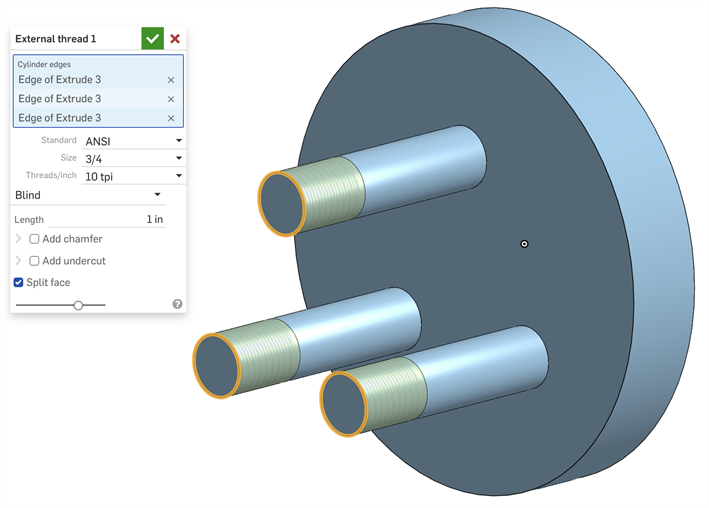
Onshape stores the standard, size, pitch, and length while showing a lightweight thread representation. Source: Onshape External Thread Help.
Default to a thread feature, not a hand-drawn helix#
For a standard tapped hole or external thread, begin with the CAD system's hole or thread feature. Select the standard and designation from its library, define the threaded length, and set the class or fit when the tool supports it. That is less dramatic than sweeping a triangle around a helix, which is exactly why it is usually safer.
Onshape's Hole feature, also updated 15 October 2026, stores tapped-hole type, size, pitch or threads per inch, optional thread class, and tapped depth. It can generate a hole/thread callout, and Onshape says its cosmetic representation avoids recalculating thread geometry during iteration. The same page distinguishes a Hole feature from a plain extruded cut: the proper feature supports callouts and can supply fastener auto-sizing information that a generic cylinder cannot.
SOLIDWORKS Design Help 2026 makes the same case from another system. Its cosmetic thread records hole attributes, appears in part, assembly, and drawing contexts, and can carry a drawing callout. For Hole Wizard tapped holes, SOLIDWORKS also distinguishes the tap-drill diameter used with cosmetic threads from the outer thread diameter used when that metadata is absent.
That difference matters. A cylindrical cut with the nominal thread diameter is not automatically a valid tapped hole. The drill, thread form, class, depth, lead-in, runout, and inspection requirement still need a coherent definition.
Onshape's official Hole Feature video shows why a purpose-built hole carries more usable definition than an ordinary extruded cut. Source: Onshape on YouTube.
The drawing needs the specification, not the spiral#
A machinist does not need thousands of tiny helical edges in the viewport to know which tap or thread mill belongs in the job. The released definition needs an unambiguous callout tied to the correct feature and revision.
The useful information depends on the chosen thread system, but normally includes the nominal designation, pitch or threads per inch, internal or external class, handedness when it is not the default, and the required thread depth or extent. Tapered pipe threads, inserts, and special forms need their own standard-specific information. Do not improvise a universal callout from memory because the model looks right.
Onshape's current External Thread feature accepts ANSI or ISO definitions, automatically proposes a size from the selected cylinder, and supports blind or up-to-next extent. It can add a chamfer and undercut, but the documentation is explicit that the thread itself remains a visual representation. That is a useful separation: the lead-in and relief may be real manufactured geometry while the repeated flanks stay lightweight.
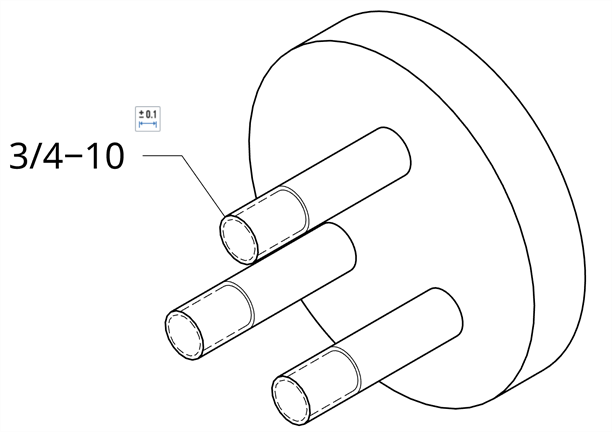
The drawing communicates the thread designation without requiring every helical flank in the part model. Source: Onshape External Thread Help.
Treat the annotation as release data. Check that it points to the intended cylindrical feature, uses the agreed standard, matches the mating component, and survives the drawing or PMI workflow. A manually typed note can drift away from the model after a size change. Associative data is better, but it still needs review.
Model the thread when the geometry must leave the screen#
There are legitimate reasons to model the flanks.
Additive manufacture is the obvious one. A slicer receives geometry, not the CAD application's cosmetic display. Autodesk therefore says you may want modeled threads for a 3D-printed part and normally do not need them for a milled part. Even then, checking the Modeled box does not prove that the printed pair will fit. Printer process, material, orientation, layer height, shrinkage, surface finish, support marks, and intentional clearance all sit outside the nominal thread shape.
Modeling may also be justified when a custom thread form is itself the design, a downstream tool consumes the actual flanks, a close rendering must show them, or an assembly study needs local geometry that a smooth cylinder cannot represent. Keep that decision narrow. A gearbox containing sixty standard fasteners rarely needs sixty detailed helices just because one custom lead screw does.
Onshape's official Tech Tip separates custom-feature and manual methods for physical thread geometry. Source: Onshape on YouTube.
When you do model a thread, verify more than its silhouette:
- Confirm the form, pitch, starts, handedness, major and minor diameters, and intended class against the controlling standard or supplier definition.
- Model the lead-in, runout, relief, and incomplete threads that the manufacturing process actually produces.
- Check minimum wall thickness around internal threads and the root region of external threads.
- Test the mating pair with intentional allowance for the real process. Nominal surfaces touching perfectly in CAD is not a fit strategy.
- Export the exact manufacturing format and inspect whether the fine faces remain valid at the recipient's tolerance.
A physical helix earns its place when another operation needs those faces. Otherwise it is mostly expensive wallpaper.
Performance gets ugly faster than the part count suggests#
One modeled thread may be harmless. A patterned row of tapped holes, a fastener library, and three configurations can turn that detail into a surprising amount of topology. Each flank adds faces and edges. Patterns multiply them. Drawings, section views, tessellation, interference checks, exports, and rebuilds all have more work to do.
Onshape explicitly links cosmetic threads with faster iteration and regeneration because there is no thread geometry to recalculate. SOLIDWORKS warns that automatically inserting assembly cosmetic threads may affect performance, and modeled geometry carries a still larger cost because it changes the solids themselves.
Use the large-assembly performance workflow before blaming the whole machine. Compare the same task with detailed threads suppressed or replaced by cosmetic definitions. If the drawing, BOM, fit decision, and manufacturing handoff still work, the helical faces are not earning their keep in that assembly state.
Interference results need similar judgement. The assembly interference guide notes that a modeled thread and a matching cosmetic-thread pair can produce different results. A red patch between nominal helical flanks may represent an intentional thread fit, an inaccurate simplified form, or a genuine clash. The analysis cannot choose the disposition for you.
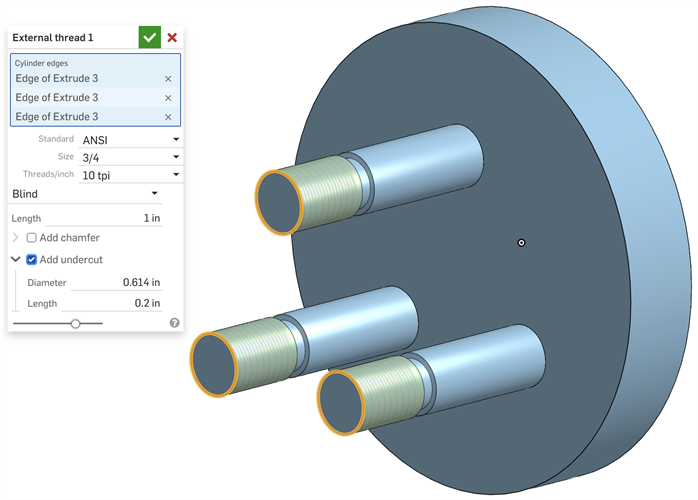
A real undercut and chamfer can sit beside a cosmetic thread definition. Model the boundary details that affect manufacture without automatically building every repeated flank. Source: Onshape External Thread Help.
Neutral files separate geometry from intent#
A cosmetic thread that works perfectly inside one native CAD system may not arrive with the same intelligence in another. STEP can carry exact B-Rep geometry and some application protocols can carry PMI, but exporter, protocol, importer, and receiving workflow all decide what survives. A mesh export such as STL carries tessellated shape, so a cosmetic thread that never changed the body cannot magically appear in the mesh.
Use the CAD file-format guide to choose the handoff, then test the actual file. Open it in the receiving system and check:
- whether the body contains smooth cylinders or physical helical faces;
- whether thread attributes, feature names, and PMI arrived;
- whether the drawing callout still points to the intended feature;
- whether units, handedness, size, class, and depth are unambiguous;
- whether the receiving CAM, print, inspection, or quoting workflow reads the information you expected.
If the recipient needs a specified machined thread, send the drawing or controlled PMI with the geometry. If the recipient needs printable flanks, send verified geometry plus the design allowance and process assumptions. Sending only a STEP file and hoping the cylinder explains itself is how a six-millimetre hole becomes an argument about what M6 was supposed to mean.
A release workflow that keeps both kinds honest#
The choice can be made without ceremony:
- Define the downstream job: drawing, machining, additive manufacture, assembly layout, interference, rendering, or exchange.
- Use a library-backed hole or thread feature for standard definitions wherever possible.
- Default to cosmetic representation when the thread specification, not the flank geometry, controls the job.
- Model only the threads whose physical surfaces are required downstream, and isolate that detail in a configuration or representation when practical.
- Add and review the thread callout, including standard-specific size, pitch, class, extent, and exceptions.
- Check lead-ins, chamfers, undercuts, minimum wall, tool access, and the mating component.
- Reopen the issued file in the receiving workflow and verify what geometry and metadata survived.
- Keep the native model, drawing or PMI, export, and check result tied to the same engineering revision.
The limitation remains boring and important: neither representation proves that a real thread will assemble or carry load. That needs the applicable standard, process capability, tooling, gauging, material, engagement, and engineering calculation. No amount of shaded helical geometry can replace those decisions.
Use cosmetic threads when the CAD model needs to know what the thread is. Use modeled threads when the next process needs to touch the actual shape. The best choice is the one that preserves the manufacturing definition without making every pan, zoom, and Friday export pay for detail nobody uses.
Related articles
CAD Workflows
CAD assembly interference checks: what a clean result misses
Run interference detection on the exact released assembly to find overlapping nominal solids, then check minimum clearance and collision through every critical motion. A clean static result does not prove tolerance-safe fit, room for movement, flexible-part behaviour, or manufacturing readiness.
Text-to-CAD
Can text-to-CAD generate engineering drawings?
Text-to-CAD can contribute to an engineering drawing when it works inside a CAD system with drawing automation, but it does not turn a prompt into a trustworthy released drawing by itself. As of October 2026, SOLIDWORKS documents AI-assisted drawing generation and Onshape can replicate existing annotations; the engineer still owns datums, tolerances, manufacturing notes, and approval.
CAD Workflows
Text-to-CAD file formats: STEP, Parasolid, STL, 3MF, and more
Use the native CAD file when both people use the same system, Parasolid when both systems share that kernel, and STEP AP242 for the safest neutral engineering handoff. Use 3MF for printing, glTF or GLB for browser review, and DXF for flat 2D profiles.
Newsletter
Get new CAD articles in your inbox
Text-to-CAD guides, new tools, CAD comparisons, and practical tutorials.