

Large CAD assemblies: make them faster without losing trust
A slow assembly is not fixed by hiding random parts and hoping for the best. Separate graphics, loading, regeneration, and mate-solving costs, then simplify only what the next task does not need.
Quick answer
Speed up a large CAD assembly by measuring which work is slow, reducing unnecessary mate solving and feature regeneration, and using task-specific lightweight or simplified representations. Keep the full released model authoritative, and restore it for interference, mass, drawing, export, and manufacturing checks.
The top-level assembly opens at 4:42 on Friday. The fan in the workstation develops a second career as a leaf blower, the progress bar stops at 91%, and a supplier is waiting for the one dimension you promised before lunch. Hiding half the tree makes the viewport move again, but now nobody is certain whether the missing motor was merely hidden or quietly excluded from the file.
A faster large assembly comes from reducing the right work, not from making geometry disappear at random. First identify whether the delay is model regeneration, component loading, graphics, or mate solving. Then use the least destructive representation that still supports the current task. Return to the full released model before checking interference, mass, drawings, exports, or manufacturing data.
This is a source-based workflow, not a performance benchmark. I did not time the same production assembly in Onshape and SOLIDWORKS, and the vendors do not publish a common test model. Hardware, network conditions, part complexity, reference structure, and the operation being measured all change the result.
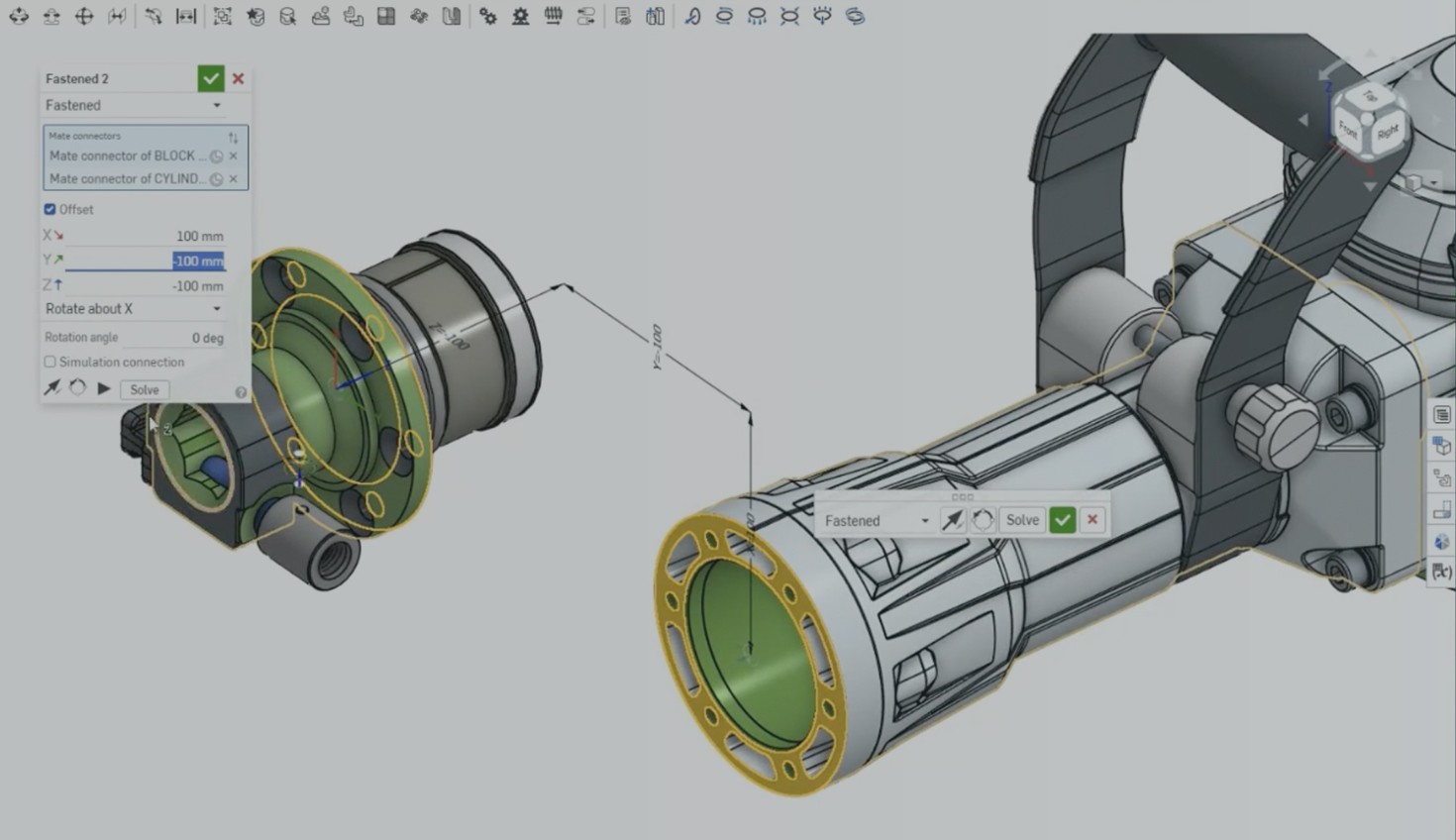
Onshape's 2026 large-assembly article uses this jackhammer model to discuss mate count and assembly structure. It is a vendor example, not a cross-platform benchmark. Source: Onshape.
“Large” is not a useful diagnosis#
Part count is easy to quote and often the wrong number to chase. Two assemblies with 10,000 instances can behave completely differently. One may contain repeated, rigid purchased units with simple geometry. The other may contain flexible subassemblies, external references, helical threads, deeply patterned parts, and mates that all have to be solved again.
Think of the delay as four separate bills:
| What feels slow | Likely work | First evidence to collect | Safe first move |
|---|---|---|---|
| Opening the file | Reading component data and resolving references | Open time, missing-reference prompts, resolved versus lightweight state | Load less model data, not fewer authoritative files |
| Rebuilding after a change | Regenerating part features and in-context references | Per-part or per-feature regeneration time | Fix the expensive features and reference chains |
| Dragging or rotating | Drawing triangles, edges, transparency, and effects | Frame rate with display quality and effects reduced | Lower display cost or use a graphics representation |
| Moving a mechanism | Solving mates and remaining degrees of freedom | Mate errors, solve time, unexpectedly mobile subassemblies | Make truly rigid groups rigid and remove redundant mates |
| Opening a drawing | Loading model data and generating views | View update time and stale-view warnings | Use the right drawing mode, then resolve before release |
Do not change all four at once. If reducing image quality fixes orbiting but rebuilds remain slow, the evidence points at graphics rather than the feature tree. If a rigid subassembly still carries dozens of live mates into the top level, hiding its screws will not remove the solver's work.
Start with the model, not the workstation shopping list#
Before simplifying anything, save a known full configuration or version and record a baseline for the operation that hurts: cold open, rebuild after one representative edit, drawing update, or motion solve. A stopwatch is enough. You are diagnosing your own model, not producing a publishable benchmark.
In a part studio, find features with long regeneration times. Patterns of detailed threads, repeated fillets, imported bodies, and derived geometry can make one component far more expensive than its neighbours. In an assembly, look for unresolved references, flexible subassemblies that do not need to flex, circular mate chains, and hardware placed with one relationship per instance.
Onshape's Performance Considerations help, updated September 24, 2026, separates Part Studio regeneration advice from assembly and mate advice. SOLIDWORKS 2026 Performance Evaluation for Assemblies similarly gives the investigation a proper home. Use those diagnostics before blaming the cloud, the GPU, or the intern who last touched the fasteners.
Reduce mate solving without lying about motion#
Every unconstrained rigid body starts with translational and rotational freedom. Mates remove those freedoms and tell the solver how components may move. That is useful until a supposedly fixed purchased unit arrives at the top level with its internal mechanism still flapping around.
Onshape's May 2026 assembly guidance says a fully rigid subassembly lets the higher-level assembly skip mate solving for that subassembly. When internal motion is required but does not need to update during the present task, its Lock/follow position option can lock the subassembly to a current or named position.
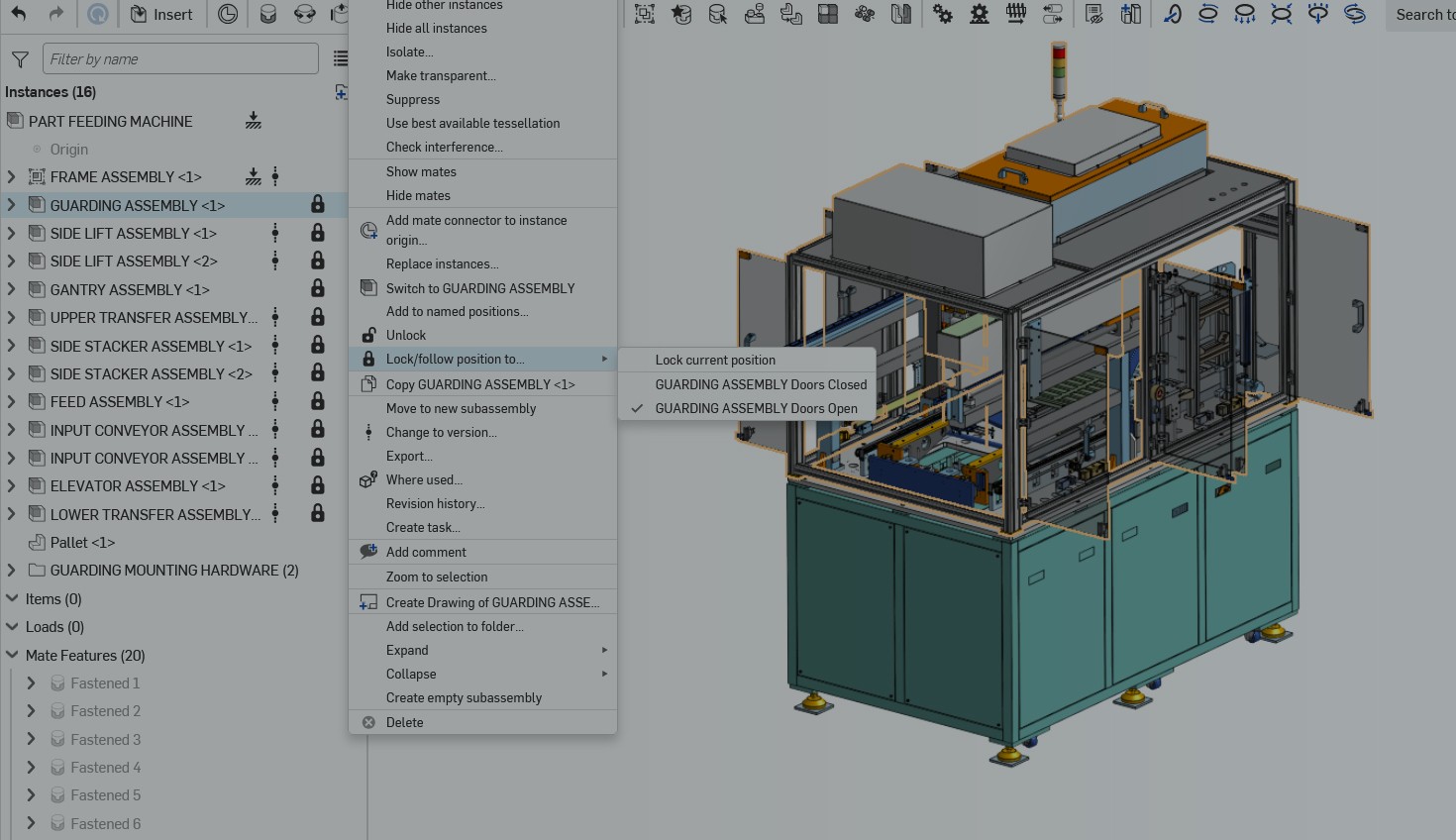
This official Onshape Tech Tip distinguishes fully rigid subassemblies from mechanisms locked to a chosen position. Source: Onshape.
Onshape's official video demonstrates the rigid and locked-subassembly workflow. The performance benefit described is vendor guidance, not a result reproduced for this article. Source: Onshape on YouTube.
Onshape's July 2026 large-assembly article recommends three structural moves: Group components that always move together, use Composite Parts when several modeled pieces should behave as one purchased item, and use Replicate rather than building hundreds of repeated fastener mates separately. Those are product-specific tools, but the transferable idea is sound: describe one real mechanical relationship once instead of making the solver rediscover it through a pile of redundant constraints.
The important warning is hidden in the word “rigid.” A robot joint, belt tensioner, folding linkage, or service door may need motion for clearance and reach checks. Lock it for a packaging review if that is useful. Do not forget that you froze it and then declare the swept volume clear.
Load only the component data the task needs#
Graphics and structure are different from full model data. SOLIDWORKS 2026 defines lightweight components as parts or subassemblies for which only a subset of model data is loaded into memory; the remaining data loads when an operation needs it. Its documentation says lightweight assemblies open and rebuild faster because less data is evaluated.
That makes lightweight loading appropriate for navigation, mating against available references, measuring, section views, and many assembly operations. It is not a promise that every task remains lightweight. The same SOLIDWORKS help page says editing a component resolves it, and certain global operations require additional data. An out-of-date lightweight part is a warning, not a performance feature.
The practical sequence is:
- Open the assembly in the lightest supported mode that can answer the immediate question.
- Resolve only the components you must edit or interrogate.
- Watch for stale or out-of-date indicators.
- Resolve the authoritative model before issuing a drawing, exchange file, CAM input, or sign-off measurement.
This is less dramatic than buying a new graphics card. It is also much cheaper.
Use simplified representations for a defined purpose#
A simplified representation should state what it is for. “Packaging envelope,” “drawing view,” “customer interface,” and “motion check” are useful names. “Light” and “fast” tell the next engineer nothing about what was removed.
SOLIDWORKS 2026 SpeedPak documentation says SpeedPak creates a simplified assembly configuration from a subset of parts, faces, reference geometry, sketches, and curves without suppressing the full parent assembly. That can preserve the few interfaces needed for mating or dimensioning in a higher-level assembly while reducing memory use.
There is a catch worth putting on the monitor: SOLIDWORKS says changes to the parent assembly are not incorporated automatically. The SpeedPak must be updated manually. Its drawing behavior also limits dimensions to included edges, and DXF/DWG export from SpeedPak drawings is not supported.
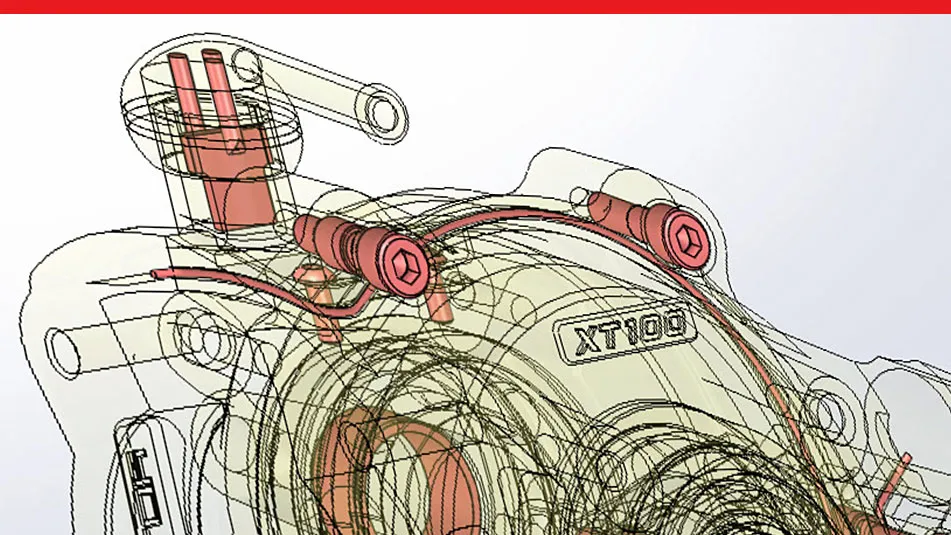
SOLIDWORKS presents Defeature as a way to simplify complex assemblies for sharing and intellectual-property protection. It is a different job from keeping an editable full assembly authoritative. Source: SOLIDWORKS.
SOLIDWORKS demonstrates large-assembly techniques including using envelope components. It is an official product demonstration, not an independent timing test. Source: SOLIDWORKS on YouTube.
Defeaturing is more aggressive. It can remove internal components and fine geometry to create a shareable envelope or protect intellectual property. That is useful when a customer needs mounting faces and keep-out volume but not the gearbox internals. It is dangerous when somebody mistakes the result for the manufacturing master.
Treat every representation as a contract: name its purpose, list what remains referenceable, record the parent revision, and state what checks it cannot support.
A safe large-assembly workflow#
Suppose a packaging assembly contains a machine frame, a purchased robot, guards, a conveyor, fasteners, and cable routing. Orbiting is poor, opening takes ages, and moving the robot causes a long solve.
First preserve the released full assembly. Measure cold open, one rebuild, and the specific robot movement. Use the CAD application's performance tools to identify whether the expensive items are the robot geometry, frame features, external references, graphics triangles, or mates.
Next separate the jobs:
- For a layout review, replace the detailed robot and conveyor internals with reference-safe envelopes while retaining mounting faces, tool-centre geometry, service clearances, and motion limits.
- For a motion review, resolve the moving mechanism but keep unrelated purchased units rigid or locked.
- For a drawing update, load the model state and references required by those views, then check every stale indicator before issuing.
- For interference, mass, centre-of-gravity, export, or CAM work, return to the full authoritative representation unless the simplified model was explicitly validated for that calculation.
Then remove structural waste. Collapse hardware patterns into the application's repeated-component feature. Make fixed subassemblies rigid. Repair circular or redundant mate logic. Move expensive cosmetic detail into a configuration that manufacturing can enable when it is genuinely needed.
Finally rerun the same measured actions. If open time improves but mate solving does not, the component-loading change worked and the constraint problem remains. That is useful evidence. “Feels quicker now” is how a bad representation survives until the next person opens it.
Validate what simplification can silently change#
Every performance shortcut creates a blind spot. Check that blind spot before the model leaves engineering.
- Compare the simplified envelope with the full model at mounting faces, datums, connectors, shafts, tooling access, and service clearances.
- Confirm that suppressed or removed parts still appear correctly in the bill of materials when the release requires them.
- Rebuild drawings and inspect view warnings, balloons, dimensions, and section views.
- Run interference and collision checks on the representation intended for that purpose, not merely the one that orbits fastest.
- Recalculate mass properties and centre of gravity from the full model unless the substitute carries separately controlled values.
- Update derived representations after the parent revision changes and record that update.
- Open the exchange file you plan to send and verify what actually left the system.
A simplified model can be perfectly fit for one job and dangerously incomplete for another. The mistake is not using one. The mistake is letting its purpose become folklore.
The useful target is predictable work#
There is no honest universal part-count threshold for a “large” assembly. A thousand badly related parts can be worse than ten thousand simple instances, and vendors measure performance on hardware and datasets that may have nothing in common with yours. If this is part of a software purchase, use the representative-assembly trial described in the Fusion versus SOLIDWORKS comparison instead of trusting a headline part count.
The reliable approach is boring in the best way. Measure one slow operation. Reduce regeneration, loading, graphics, or solving work deliberately. Keep the full model authoritative. Name simplified representations by task. Resolve and validate before release.
The goal is not a viewport that spins impressively during a demo. It is an assembly that stays quick enough to edit and complete enough to trust when the supplier is still waiting at 4:58.
Related articles
CAD Workflows
CAD version control: versions, revisions, and releases
CAD version control should preserve every useful design state while reserving revision labels for approved changes. Release one traceable package of the native model, drawing, BOM, and required exports so manufacturing can identify exactly what was approved.
Comparisons
Fusion vs SolidWorks: choose for the work after the first model
Choose Autodesk Fusion when integrated design and machining, macOS support, and shared cloud projects fit your work. Choose desktop SOLIDWORKS Design when native SOLIDWORKS deliverables, established assembly workflows, and your team's drawing standards matter most.
Comparisons
Onshape vs SOLIDWORKS in 2026: which workflow fits your team?
Choose Onshape for cloud-native CAD, branching, and live editing. Choose SOLIDWORKS Design for native Windows authoring, up to 30 days offline, and cloud revision tools in current plans.
Newsletter
Get new CAD articles in your inbox
Text-to-CAD guides, new tools, CAD comparisons, and practical tutorials.