

Imported STEP file errors: repair, re-export, or rebuild?
A STEP model that looks solid can still contain gaps, broken faces, or topology that fails on the first edit. Diagnose the receiving model first, then choose the smallest safe fix.
Quick answer
Repair an imported STEP file when the fault is local and the intended shape is unambiguous. Request a better export when faults repeat across the model, and rebuild only when missing design intent or widespread bad topology makes repair less trustworthy than remodeling.
The supplier's STEP file opens at 4:47 on Friday. The part looks clean, the deadline does not, and the first harmless fillet fails with an error message that explains nothing. On the second monitor, the drawing insists the radius is real. In the model, one corner is held together by the geometric equivalent of wishful thinking.
Do not start patching at random. First decide whether the import is a valid solid, a repairable set of surfaces, or a bad translation that should go back to the sender. Repair is sensible when the defect is local and the intended shape is obvious. Re-export is safer when the model contains repeated gaps, missing faces, wrong units, or damaged assembly structure. Rebuild only when the geometry is too unreliable, or when the job needs design intent that a neutral file never carried.
This is a source-based workflow, not a benchmark of translator quality. I did not run a private test set through SOLIDWORKS, Fusion, Onshape, and FreeCAD. The commands and failure types below come from their current documentation and from an official SOLIDWORKS repair tutorial. Exact results depend on the sending system, receiving kernel, model scale, and tolerances.
A successful import can still be a bad model#
CAD translation has to map one system's curves, surfaces, topology, units, assembly structure, and tolerance rules into another system. Onshape's imported-CAD guide, updated September 24, 2026, says translated data may arrive with faults, without parametric history, or as separate surfaces instead of a cohesive solid. It also calls Parasolid its most reliable commonly used translation format.
That distinction matters. A STEP file can render beautifully while its B-Rep is invalid. Shading hides tiny gaps. Two faces can appear joined while their edges sit just outside the receiving kernel's sewing tolerance. A sliver face can be nearly invisible until a shell, fillet, boolean, or CAM operation asks the kernel to follow it.
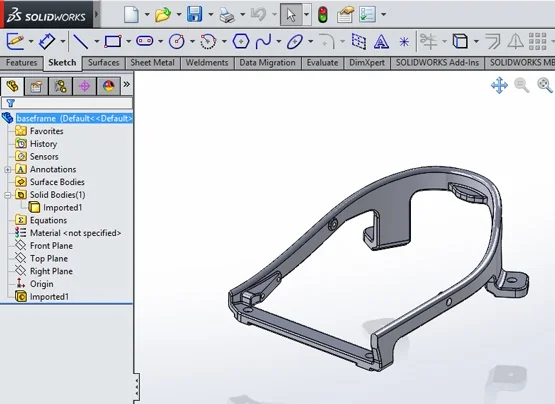
The imported body looks ordinary in the viewport, which is precisely why visual inspection is not enough. Source: SOLIDWORKS, “How to Repair Imported Geometry”.
The first check is not whether the model looks right. It is whether the receiving application considers it a valid solid.
Diagnose before changing anything#
Keep an untouched copy of the received file, then inspect the import in a fresh document. Record the sending application, export format and version if known, units, overall dimensions, expected body count, and any import warnings. That gives you a baseline when a repair changes more than expected.
Run the application's geometry checker before adding features. The tools use different names, but the questions are similar:
- Did the file produce the expected number of solid bodies, or only surface bodies?
- Are there open edges, gaps, invalid faces, self-intersections, or edges shorter than the receiving kernel accepts?
- Did cylinders, cones, and planes remain analytic, or arrive as fragmented freeform faces?
- Are assembly positions, colors, names, and product data still attached to the correct objects?
- Do the bounding dimensions and units match the drawing or sender's reference values?
SOLIDWORKS offers Import Diagnostics when a translated part opens. Its official tutorial uses that tool to identify faulty faces and gaps before attempting an automatic heal.
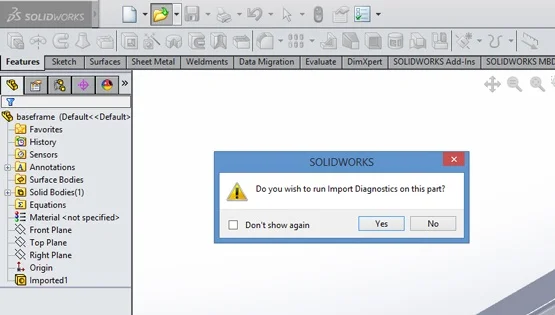
Import Diagnostics is useful because it makes the validity check explicit before new features hide the original fault. Source: SOLIDWORKS.
MECAD Systems demonstrates SOLIDWORKS Import Diagnostics locating faulty faces and surface gaps. It is a product workflow demonstration, not an independent translator comparison. Source: MECAD Systems on YouTube.
FreeCAD's Check Geometry documentation, last edited January 1, 2026, says its Part workbench validates whether the B-Rep is a valid solid and can report self-intersections, very small edges, nonrecoverable faces, and curve-on-surface errors. It also says FreeCAD does not automatically repair detected faults. That is a useful warning against treating every application's red result as a one-click job.
Choose repair, re-export, or rebuild from the pattern of failure#
The defect pattern is more useful than the error count.
| What you find | Best first move | Why |
|---|---|---|
| One or two local gaps or invalid faces, with obvious intended shape | Repair locally | The change can be isolated and checked against nearby geometry |
| Many gaps at similar seams | Re-export with a better format or tolerance | Repeated faults usually point to translator settings, not independent modeling mistakes |
| Wrong units, missing bodies, broken assembly placement, or incomplete export | Request a corrected source/export | Surface repair cannot restore data that never arrived |
| Clean solid with awkward split faces but no validity errors | Use direct editing or limited face cleanup | The model is valid; the problem is editability, not healing |
| Widespread sliver faces, self-intersections, or ambiguous patches | Request native/Parasolid data or rebuild | Local fixes can quietly change shape and create a model nobody can defend |
| Valid geometry, but future revisions need sketches, constraints, and configurations | Rebuild or obtain the native file | STEP normally preserves the result, not the feature history |
Before doing surgery, try the cheap upstream fixes. Ask for Parasolid when both applications use that kernel. Ask the sender to export the original model again rather than converting a converted file. Confirm STEP AP and units. If the sender has validation or healing options, have them run those before export. A fresh file from the authoritative model is easier to trust than a heroic patch applied three translations later.
Local repair follows a predictable sequence#
When the fault really is local, the workflow is diagnosis, removal, reconstruction, stitching, and validation.
Start with automatic healing, but inspect what it changed. A healer may close gaps by adjusting edges or replacing a face. That is reasonable when the correction stays within an understood tolerance. Increasing a sewing tolerance until the error disappears is not automatically a success. On a small precision part, the tolerance that joins two intended edges can also merge details that were supposed to remain separate.
If automatic healing leaves one bad face, isolate it. The SOLIDWORKS tutorial deletes the faulty face, reconstructs the opening with a filled surface, then knits the surfaces back into a solid. The exact command changes by system, but the geometry problem does not: remove the invalid patch without destroying sound neighbouring faces, create a replacement with the required boundary continuity, and join it back into a closed shell.
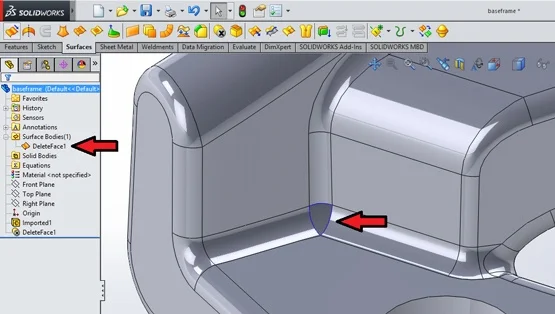
The highlighted local face gives the repair a bounded target. A fault scattered across dozens of faces is a different decision. Source: SOLIDWORKS.
Valley CAD works through gaps that Import Diagnostics cannot repair automatically. The demonstration is specific to SOLIDWORKS, while the diagnose-patch-stitch-check sequence applies more broadly. Source: Valley CAD on YouTube.
Autodesk's Fusion Stitch documentation says Stitch can combine surfaces into one surface or solid body. It exposes the number of free edges and unstitched edges, highlights edges within the join tolerance, and can close gaps in an imported body. If the result becomes watertight, Fusion creates a solid.
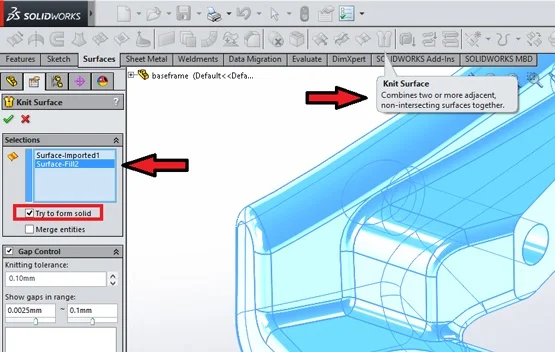
Knit Surface is shown with “Try to form solid” enabled after the replacement patch is selected. Source: SOLIDWORKS.
Do not confuse a stitched solid with the original design intent. The model may now pass kernel validation, but the replacement patch can still have the wrong curvature, draft, wall thickness, or tangent condition. Compare it with the drawing, known section dimensions, neighbouring surfaces, and the sender's reference image.
A worked triage example#
Suppose a supplier sends a STEP model for a die-cast enclosure. It imports as one solid, but a shell operation fails near a three-face corner.
First, measure the enclosure and confirm units. Run geometry validation. It reports one invalid face and no open shell. Zooming in reveals a tiny triangular sliver where two fillets meet. The intended corner is clear from the drawing, and the fault is nowhere near a sealing surface or controlled datum.
That is a reasonable local-repair candidate. Save a copy. Delete the sliver face, extend or rebuild the adjacent surfaces, stitch the patch, and run the stringent geometry check again. Then compare the repaired corner to the drawing and test the operation that originally failed.
Change the example slightly and the answer changes. If the checker reports forty-seven bad faces along every blend, or the model imports as eleven surface bodies instead of one solid, stop. Ask for the native model, a Parasolid export, or a STEP generated directly from the source system. Forty-seven patches are not persistence. They are a warning that the translation route is wrong.
Validate the repaired model as a new deliverable#
After repair, rerun the same checker with the same or stricter settings. SOLIDWORKS's tutorial finishes with the Check command using its Stringent option. FreeCAD similarly separates the visual model from B-Rep validity. A clean tree icon is useful, but record the actual checks.
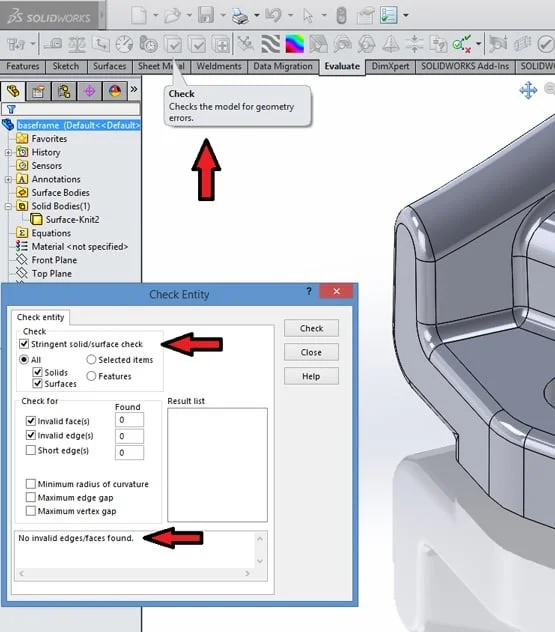
The final geometry check is the evidence that the body is valid in the receiving system. It does not prove dimensional fidelity by itself. Source: SOLIDWORKS.
Then verify what kernel validation cannot decide:
- Compare overall and critical dimensions with the authoritative drawing or model.
- Check mass or volume against a known value when one is available.
- Inspect repaired curvature, tangency, draft, wall thickness, and minimum radii.
- Repeat the failed downstream operation, such as shell, fillet, boolean, meshing, or CAM stock generation.
- Export and reopen a neutral copy if the repaired file will leave the receiving system again.
- Record which faces changed and why. Do not let the repaired model masquerade as an untouched supplier file.
For manufacturing, also check datums, hole axes, mating faces, and any model-based tolerances. A valid volume can still be the wrong part. Geometry validation answers whether the kernel can reason about the body, not whether a machinist should trust it.
Stop repairing when the model stops being evidence#
Repair has a clear limit. If the fix requires guessing the intended surface, moving controlled interfaces, or replacing a large percentage of the model, the result is a redesign. Treat it that way. Get the sender involved, rebuild from controlled dimensions, and give the new model its own revision and validation record.
The practical rule is pleasantly unglamorous. Diagnose first. Repair only bounded faults. Prefer a clean upstream export when the errors repeat. Rebuild when the missing information matters more than the visible shape.
A STEP file is a handoff, not a confession of how the part was built. When the handoff arrives wounded, the job is not to make the warning icon disappear. It is to produce geometry whose origin, changes, and fitness for the next operation can still be explained after Friday afternoon has passed.
Related articles
CAD Workflows
Text-to-CAD file formats: STEP, Parasolid, STL, 3MF, and more
Use the native CAD file when both people use the same system, Parasolid when both systems share that kernel, and STEP AP242 for the safest neutral engineering handoff. Use 3MF for printing, glTF or GLB for browser review, and DXF for flat 2D profiles.
Tutorials
Text-to-CAD to STEP file: getting usable output
Zoo.dev and CADScribe can export text-to-CAD output as STEP files. Always verify STEP output by importing into SolidWorks or Fusion 360 and checking: dimensions match the prompt, faces are valid, no open surfaces exist, and the geometry is a proper solid. Expect to fix 2-3 issues per import.
Comparisons
Fusion vs SolidWorks: choose for the work after the first model
Choose Autodesk Fusion when integrated design and machining, macOS support, and shared cloud projects fit your work. Choose desktop SOLIDWORKS Design when native SOLIDWORKS deliverables, established assembly workflows, and your team's drawing standards matter most.
Newsletter
Get new CAD articles in your inbox
Text-to-CAD guides, new tools, CAD comparisons, and practical tutorials.